

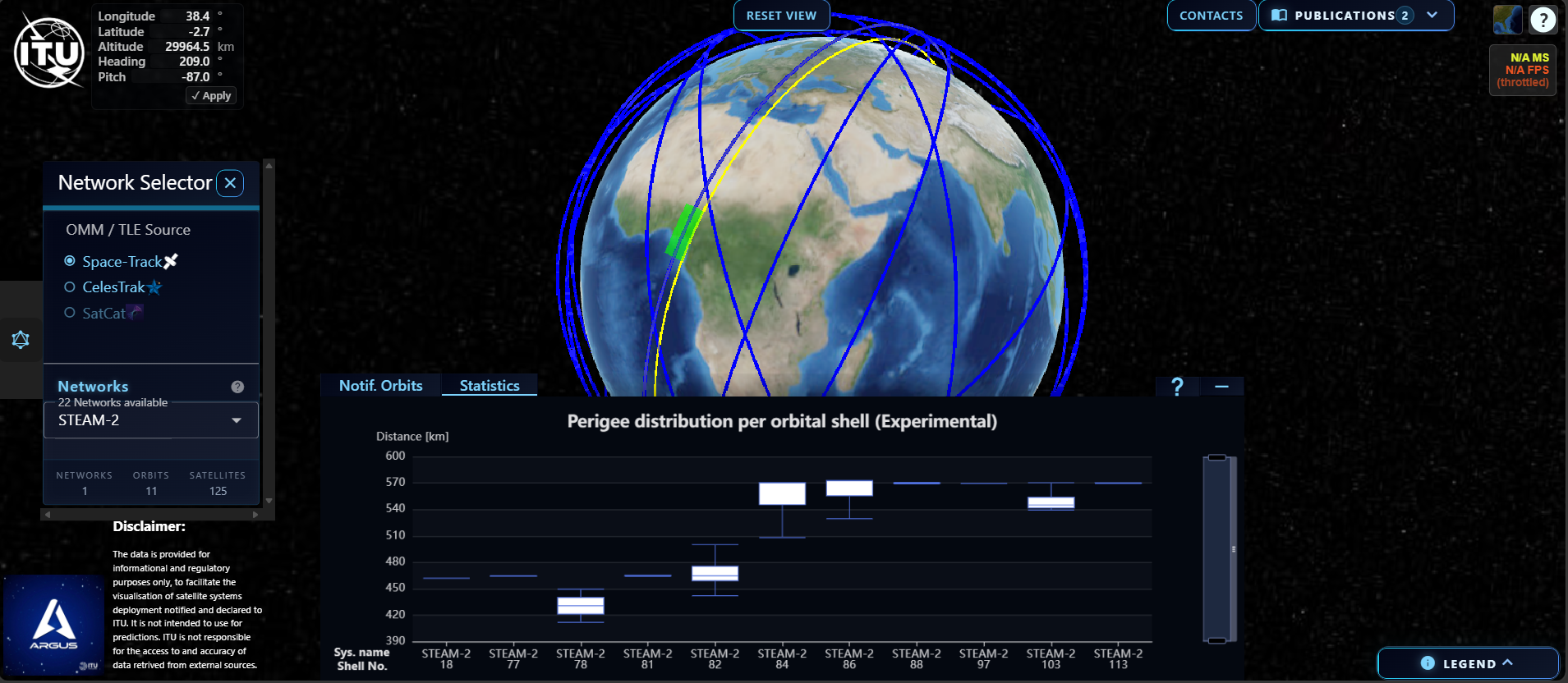
Argus Quick Guide
Table of Contents
Introduction
Before you start
Argus works best on larger screens. If you use a small screen and the view is too crammed, try reducing the zoom level of your browser with ctrl+”-“
Click on an orbit to display further details.
Important Concepts
Data hierarchy: Orbits are clustered in the following way: Network Notified Orbits Declared Orbits Actual Orbits
Important Definitions
Actual Orbit: Orbit as per public OMM data.
Declared Orbit: Orbit for a spacecraft declared to ITU.
Tolerance Volume: The 30km Tolerance Volume is centered on the Declared Orbit line. Its radial extension depicts the 30km altitude tolerance for the spacecraft.
Argus Interface Overview
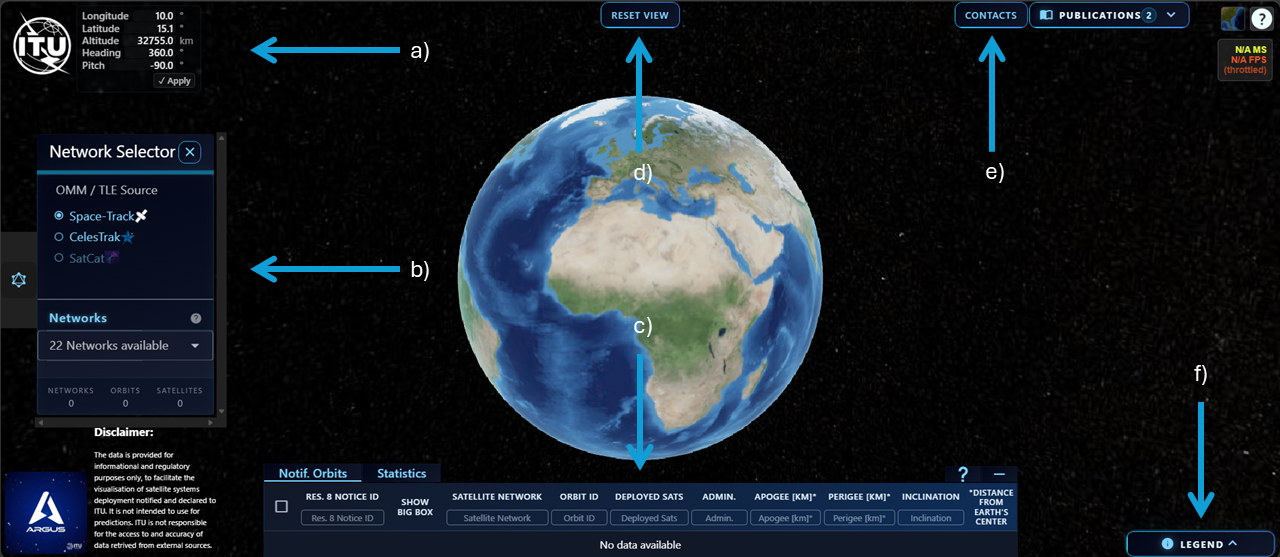
Control Elements Description
| Element | Description |
|---|---|
| a) | Headup Display – Shows the position altitude, and, orientation of the camera in reference to the surface. Values can be set manually. |
| b) | Side Panel – Select a data source and one or more networks. |
| c) | Bottom Panel – Shows orbits of selected networks. Orbits can be searched and sorted. |
| d) | Reset Camera View – Resets the camera position and pitch to the home position. Very helpful when you are lost. |
| e) | Contacts – Opents the contacts widget with a collection of points of contacts for each system. |
| f) | Legend – Offers further explanations about color scheme and tolerances |
Interface Details
Bottom panel
| Element | Description |
|---|---|
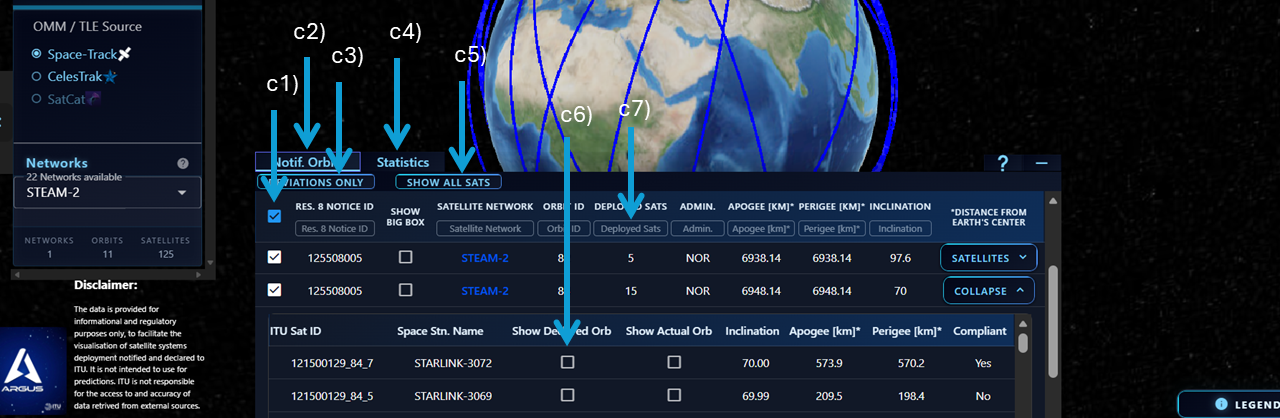
| c1 | Show (all) notified orbits. Select which notified orbits should be displayed. |
| c2 | Notified orbits tab. Displays a list of notified orbits and their related actual orbits and declared orbits. |
| c3 | Filter: When selected, only notified orbits are shown where at least one actual satellite is not within tolerances. |
| c4 | Statistics tab. Displays altitude distribution for all satellites of selected networks. |
| c5 | Filter: When selected, all actual orbits will become visible. Press again to hde them again. |
| c6 | Select individual declared orbits, belonging to a notified orbit. When a declared orbit is selected, its tolerance volume is displayed as well. |
| c7 | Search fields: Narrow down the list by searching for matching values. For example typing “>5” in the ‘Deployed Sats’ field will show all Notified orbits where more than 5 satellites have been deployed. |
